EC - Making employees inactive or terminating an employee
Removing an employee from the device
It is best practice to remove the employee from the device once they have been terminated or are inactive.
Before you un-assign the employee, make sure that the device is online. This will help to ensure you have downloaded all their clocking times and that the changes you are about to make will be applied immediately.
- Click on Users
- Click on Clocking Permissions
- Select the User that you want to un-assign the device
- Click on the "Garbage Bin" icon. You will see the list of Time Clock devices disappear on the right, showing that they are no longer assigned.
- Then click Save
Inactivating Employees
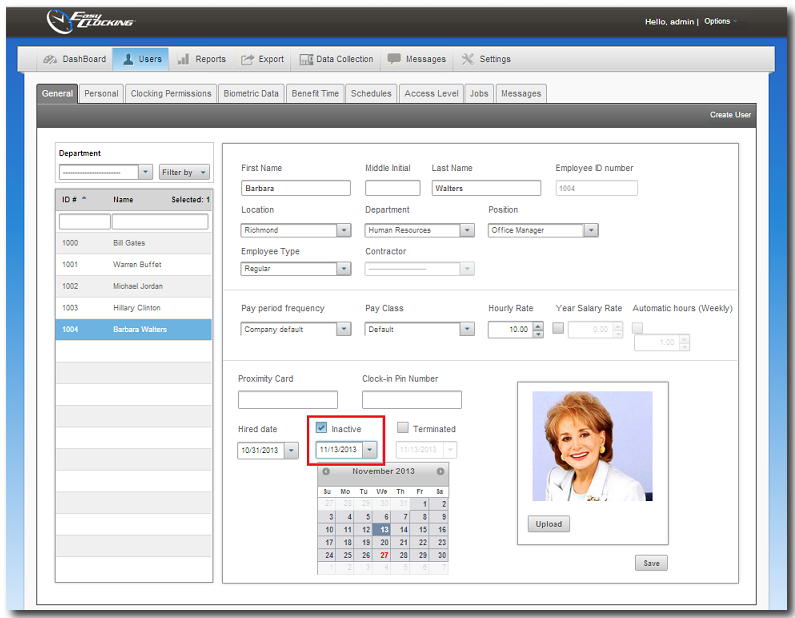
Making an employee inactive will allow you to add another employee in the place of the inactive employee within your licensed number of users. This option is commonly used with seasonal employees, or employees that work from time to time, but are not full time employees.
To make an employee inactive:
Terminating an Employee
To make an employee inactive:
- Click on Users.
- Click on the employee from list.
- Checkmark Inactive and enter inactive starting date for this employee as shown of the picture below.
- Then click Save.
Terminating an Employee
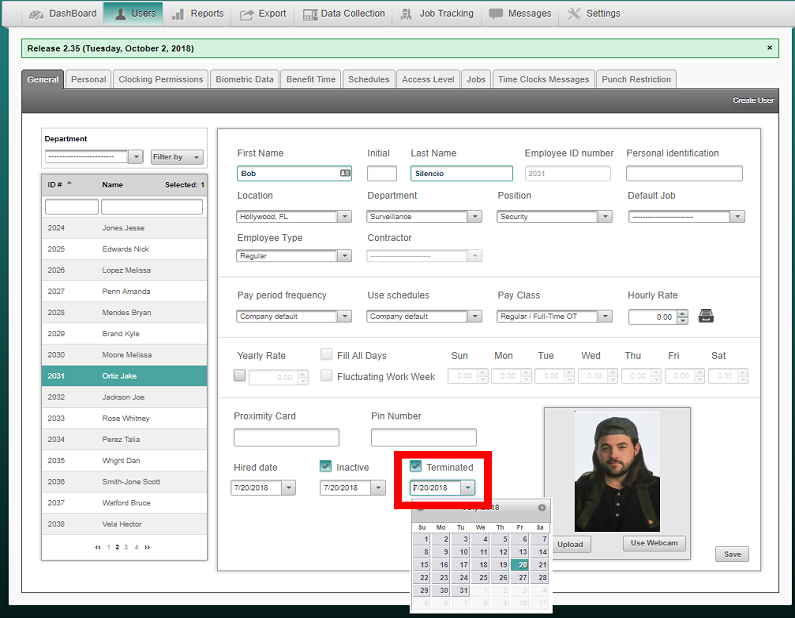
This option is used when an employee is terminated or no longer works for the company. Terminating an employee from the software will allow you to add another employee on the software according to the number of user's allowed in your license agreement. For audit purposes, any previous records from the terminated employee will be kept in the database and will not be deleted.
To terminate an employee:
To terminate an employee:
- Click on Users.
- Click on the General tab.
- Click on the employee from list.
- Check mark Terminated and enter the date the employee was terminated.
- Then click Save
If you have forgotten to remove clocking permissions before inactivating or terminating an employee, follow the below guide
To remove all employees and re-assign employees to a device:
- Click on Data Collection
- Click on Time Clocks tab
- Select the device under "Time Clock Name"
- Click on "Empty users enrollment" button.
A confirmation window will pop up asking you "Are you sure you want to send the command to the time clock?
PLEASE NOTE: THE FINGERPRINT ALREADY ENROLLED FOR THE EMPLOYEE WILL STILL BE STORED IN THE SOFTWARE. IT WILL ONLY BE REMOVED FROM THE DEVICE. - Click on the "Yes" button
Now you will need to assign the active employees back to the time clock device.
- Click on "Assign users" button (as shown above)
- Select certain employees or all employees by selecting the tick box as shown below
- Once the employees are displayed in the "Selected Employees" field, then click on the "Assign" button